Terraform State Recovery
Procedures for recovering from Terraform state drift when the state file doesn't match AWS reality.
On this page
I ran terraform plan and it wanted to destroy an actively-used RDS cluster. The state file had drifted from AWS reality. Resources existed in AWS that Terraform didn’t know about, and Terraform’s view of existing resources was outdated. Instead of panicking and running apply, I needed a systematic recovery process.
Terraform state drift happens when the state file doesn’t match what actually exists in your cloud provider. This can occur from manual console changes, failed applies, or state file corruption. The recovery process is methodical: back up first, assess the damage, import missing resources, and fix configuration drift.
Recognizing State Drift
These symptoms in terraform plan output indicate drift:
- Resources marked for destroy that are actively used in production
- Resources marked for create that already exist in AWS
- Unexpected instance replacements (destroy + recreate)
- Changes that nobody made appearing in the plan
If terraform plan shows any of these, do NOT run terraform apply. Diagnose first.
Recovery: Phase 1 — Assessment
The first rule is: always back up the current state before touching anything.
With local state, that’s a file copy:
cp terraform.tfstate terraform.tfstate.backup-$(date +%Y%m%d)With a remote backend, there’s no local file to copy. Pull it instead. terraform state pull reads the state from the configured backend, and its counterpart terraform state push writes a state file back, which is the pair HashiCorp documents for recovering state from a backup:
terraform state pull > terraform.tfstate.backup-$(date +%Y%m%d)Next, reconcile Terraform’s view of your infrastructure with what’s actually in AWS. The step I reached for first was terraform refresh, and that turned out to be the wrong instinct. HashiCorp’s CLI docs now carry a deprecation notice on that page: “This command is deprecated. Instead, add the -refresh-only flag to terraform apply and terraform plan commands.”
The reasoning matters more than the syntax. terraform refresh is equivalent to terraform apply -refresh-only -auto-approve. It writes whatever it discovers straight into state with nothing to review. The docs are blunt about the failure mode: if provider credentials are misconfigured, “Terraform may be misled into thinking that all of the managed objects have been deleted, causing it to remove all of the tracked objects without any confirmation prompt.”
That is the same failure this whole post is trying to avoid, so read before you write:
# Read-only: shows what a refresh WOULD change in state
terraform plan -refresh-only

# Only after reviewing that output — this prompts for approval
terraform apply -refresh-only
Then analyze what drift remains:
terraform plan -out=drift-analysis.tfplanReview this plan carefully. Categorize each change: is Terraform trying to create something that exists? Destroy something that’s running? Modify something that was changed manually?
Recovery: Phase 2 — Import Missing Resources
For resources that exist in AWS but aren’t in Terraform state (Terraform wants to create them when they already exist), bring them under management with an import. The terraform import CLI command takes a resource address and the provider’s ID for the existing object:
# RDS Cluster
terraform import aws_rds_cluster.main app-prod-cluster

# RDS Instance
terraform import aws_rds_cluster_instance.main app-prod-instance-1

# EC2 Instance
terraform import aws_instance.main i-0123456789abcdef0
Each import command tells Terraform “this resource in my configuration corresponds to this existing resource in AWS.” After importing, Terraform tracks the resource without trying to recreate it.
One caveat worth knowing before you start typing: the CLI command “can only import resources into the state” and “does not generate configuration,” so you still have to write matching .tf blocks yourself, which is exactly what Phase 3 is about. Terraform’s docs point at the declarative import block as the alternative when you want configuration generation and want the import reviewed in a plan instead of executed immediately.
Recovery: Phase 3 — Fix Configuration Drift
After importing, terraform plan may still show changes because your .tf configuration doesn’t match the actual resource attributes. Common issues and fixes:
| Issue | Fix |
|---|---|
| AMI mismatch | Pin AMI in configuration |
| Security group type | Use vpc_security_group_ids for VPC |
| ECS task definition | Add lifecycle ignore |
Pin AMI to Prevent Replacement
If Terraform wants to replace an EC2 instance because the AMI changed:
resource "aws_instance" "main" {
  ami           = "ami-0abcdef1234567890" # replace with the AMI the instance is actually running
  instance_type = "t3.medium"

  lifecycle {
    ignore_changes = [ami] # or pin and manage manually
  }
}
The lifecycle.ignore_changes block tells Terraform to skip an attribute when planning updates. HashiCorp describes it as the way “to let Terraform share management responsibilities of a single object with a separate process.” That is precisely the AMI case, where a patching pipeline outside Terraform is the thing changing the value.
It’s a trade-off, not a free win: an ignored attribute is one Terraform stops reconciling, so drift there becomes invisible instead of noisy. Ignore the narrowest attribute you can, and only when something else genuinely owns it.
ECS Task Definition Lifecycle
When CI/CD manages task definitions separately from Terraform:
resource "aws_ecs_service" "main" {
  name            = "api"
  cluster         = aws_ecs_cluster.main.id
  task_definition = aws_ecs_task_definition.main.arn

  lifecycle {
    ignore_changes = [task_definition]
  }
}
Without this, every terraform plan shows a diff because CI/CD has updated the task definition since Terraform last applied.
VPC Security Groups
A common source of drift is using the wrong security group attribute for VPC instances:
# ❌ Wrong for VPC instances
resource "aws_instance" "main" {
  security_groups = [aws_security_group.main.name]
}

# ✅ Correct for VPC instances
resource "aws_instance" "main" {
  vpc_security_group_ids = [aws_security_group.main.id]
}
Using security_groups (by name) instead of vpc_security_group_ids (by ID) causes Terraform to detect drift on every plan because the API returns IDs, not names.
Prevention: Remote State Backend
Most state drift is cheaper to prevent than to recover from. A remote backend centralizes the state file and adds locking so two people can’t apply at once:
terraform {
  backend "s3" {
    bucket       = "mycompany-terraform-state"
    key          = "prod/terraform.tfstate"
    region       = "us-east-1"
    encrypt      = true
    use_lockfile = true
  }
}
If you learned this backend a few years ago, use_lockfile may be new to you. The pattern most tutorials still show is a dynamodb_table argument plus a separate aws_dynamodb_table resource holding a LockID hash key. That path still works, but the S3 backend documentation now states that “DynamoDB-based locking is deprecated and will be removed in a future minor version,” with use_lockfile as the S3-native replacement. Both can be set at the same time while you migrate, which is the documented way to roll this out without a flag day.
Check the backend docs against your own Terraform version before you change this. Locking is not the argument to get wrong from a blog post.
Key Lessons
- Always back up state first. Copy the file for local state, or run
terraform state pullfor a remote backend. - Refresh read-only before you refresh for real.
plan -refresh-onlyshows you the damage;refreshjust commits it. - Import before manage. Don’t recreate existing resources. Import them, then write the configuration to match.
- Use lifecycle blocks deliberately. Only for attributes another process genuinely owns, and no wider than that.
- Plan extensively. Run
terraform planmultiple times during recovery, and neverapplywithout reviewing. - Set up remote state with locking. Centralizing state management prevents most drift.
Takeaway
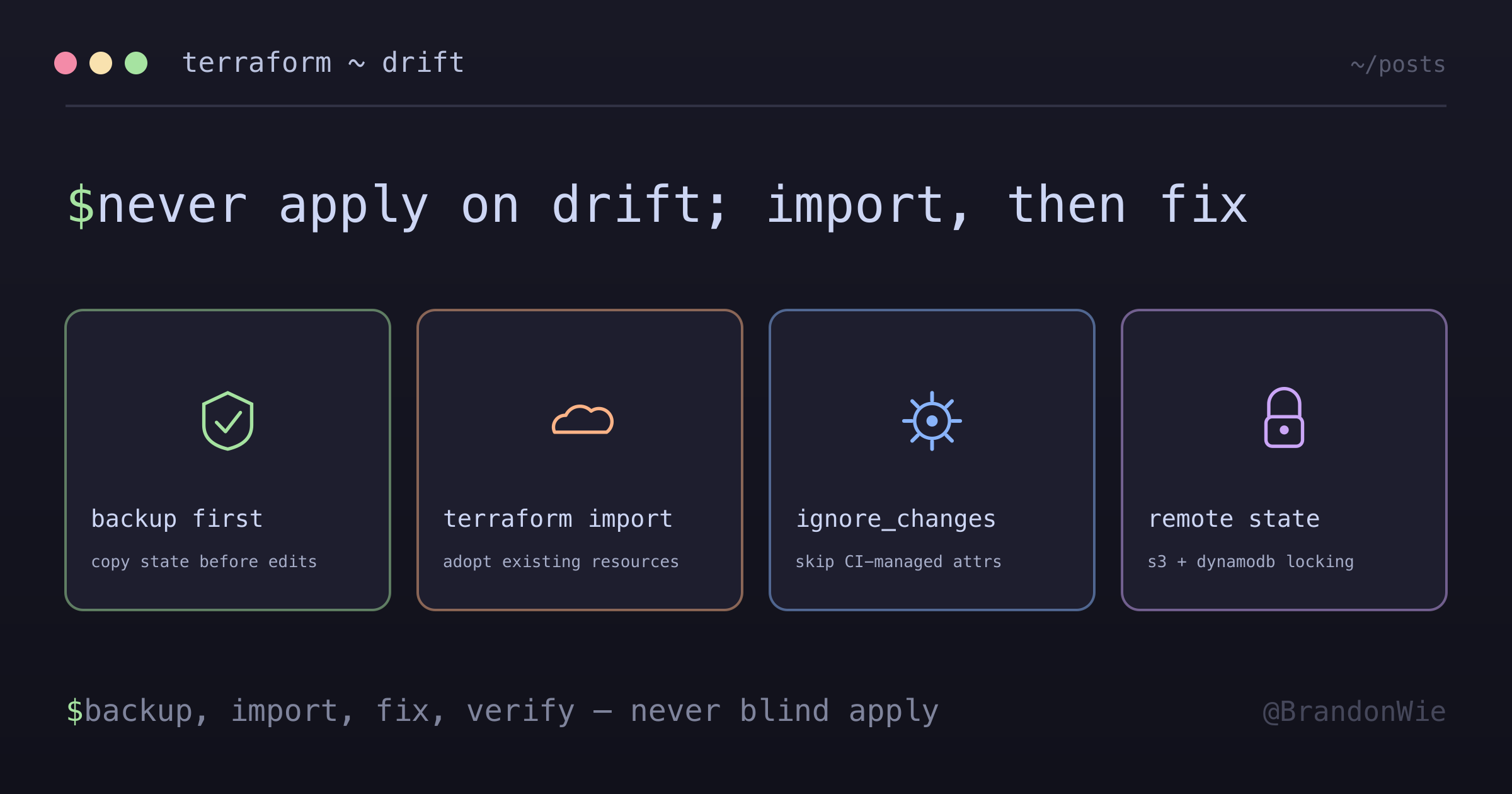
Terraform state recovery follows a predictable pattern: back up, reconcile read-only, import missing resources, fix configuration drift, and verify with plan. The key is to never let anything write to state before you’ve read what it intends to write, which is why the deprecated terraform refresh is worth unlearning even though it still runs. Set up remote state with locking from day one to prevent most drift scenarios. When drift does happen, the systematic approach (assess → import → fix → verify) gets you back to a clean state without destroying production resources.
References
- Recover state from backup — the documented
terraform state pull/state pushpair for reading and restoring remote state - Command: refresh — the deprecation notice and the auto-approve risk that makes
-refresh-onlythe safer path - Import existing resources — the CLI command imports into state only and does not generate configuration
- The lifecycle meta-argument — what
ignore_changesdoes and the shared-ownership case it’s for - Backend type: s3 —
use_lockfilefor S3-native locking and the DynamoDB locking deprecation
Comments · github discussions
repo brandonwie/brandonwie.dev · category "Blog Comments" · term terraform-state-recovery