ECS Autoscaling Patterns
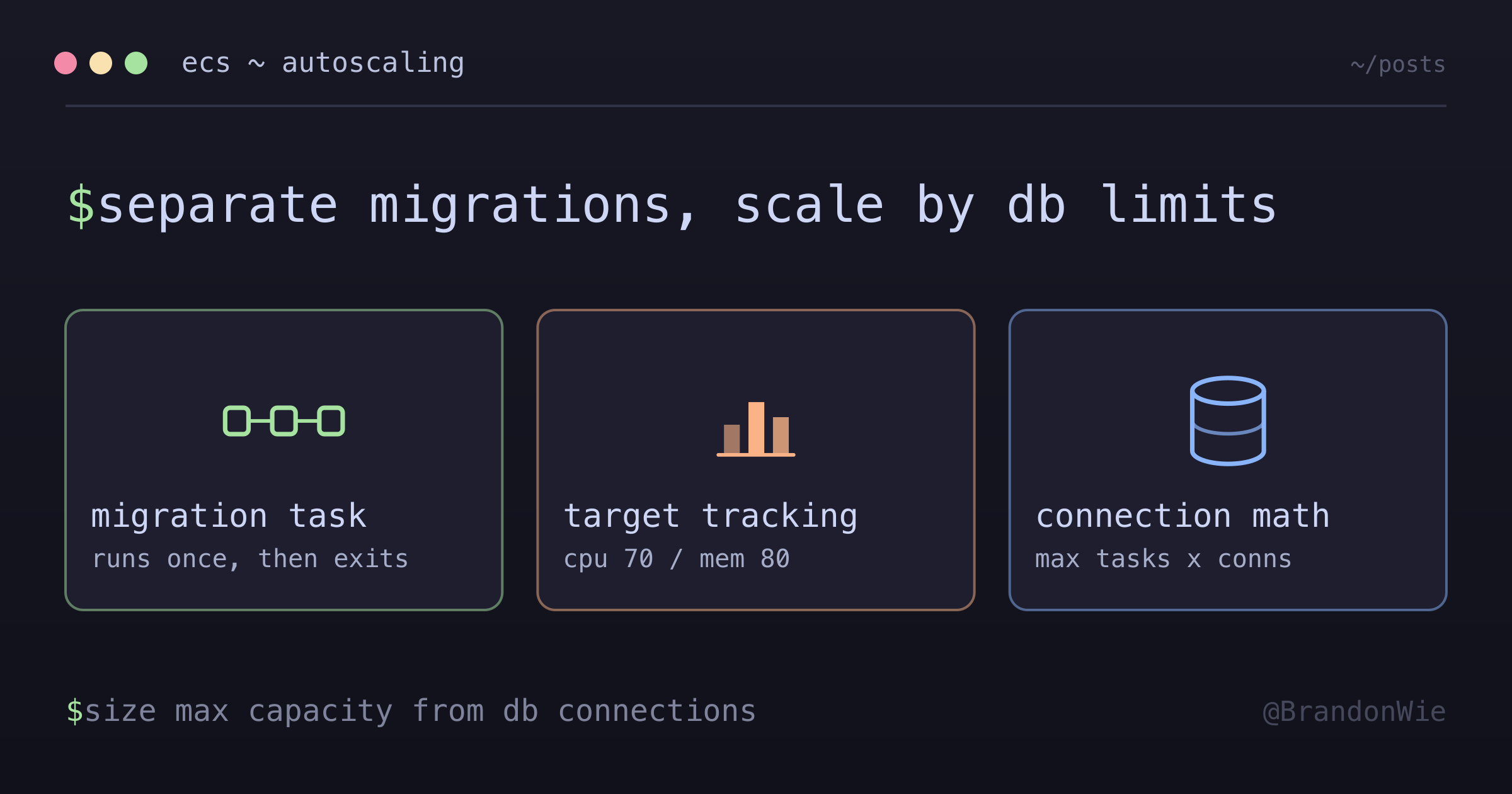
ECS service autoscaling with migration tasks separated from service containers, and how to size max capacity from the database connection budget.
On this page
The first time I deployed an ECS service with autoscaling enabled, three containers started simultaneously and all tried to run database migrations at the same time. Two crashed with migration lock conflicts, and the third applied migrations out of order. It took me a full afternoon to untangle the database state.
That incident taught me the most important lesson about ECS autoscaling: separation of concerns between migration tasks and service containers is not optional. Here is the architecture I use now.
Migration Task Separation
The Problem
When ECS scales out, it launches multiple containers in parallel. If your container entrypoint runs migrations before starting the application server, every new container runs migrations simultaneously:
Container 1: Running migration...
Container 2: Running migration... (CONFLICT!)
Container 3: Running migration... (CONFLICT!)
Some migration tools use advisory locks to prevent concurrent execution. Even when locks work, you waste startup time — containers sit idle waiting for the lock holder to finish. And if the lock mechanism has any gaps (and it often does under concurrent Fargate launches), you get corrupted migration state.
The Solution
Separate migrations into their own task definition that runs once before the service scales.
# Migration task - runs once
resource "aws_ecs_task_definition" "migration" {
  family = "${var.project}-migration"
  container_definitions = jsonencode([{
    name    = "migration"
    image   = var.image
    command = ["npm", "run", "migration:run"]
  }])
}

# Service task - runs multiple instances
resource "aws_ecs_task_definition" "service" {
  family = "${var.project}-service"
  container_definitions = jsonencode([{
    name    = "api"
    image   = var.image
    command = ["npm", "run", "start:prod"]
  }])
}
The migration task definition uses the same Docker image but with a different command. It runs once, applies any pending migrations, and exits. The service task definition runs the application server and can safely scale to multiple instances because it never touches migrations.
Deployment Order
The deployment pipeline enforces this sequence:
1. Run migration task (single instance, wait for completion)
2. Update service task definition
3. Let autoscaling manage instance count
Step 1 must complete before step 2 begins. If migrations fail, the deployment stops. The service containers never start with an incompatible database schema.
Target Tracking Policies
With migrations separated, the autoscaling configuration itself is straightforward. I use target tracking policies for both CPU and memory.
The Configuration
resource "aws_appautoscaling_target" "ecs" {
  service_namespace  = "ecs"
  resource_id        = "service/${var.cluster}/${var.service}"
  scalable_dimension = "ecs:service:DesiredCount"
  min_capacity       = 1
  max_capacity       = 4
}

resource "aws_appautoscaling_policy" "cpu" {
  name               = "${var.project}-cpu-scaling"
  policy_type        = "TargetTrackingScaling"
  resource_id        = aws_appautoscaling_target.ecs.resource_id
  scalable_dimension = aws_appautoscaling_target.ecs.scalable_dimension
  service_namespace  = aws_appautoscaling_target.ecs.service_namespace

  target_tracking_scaling_policy_configuration {
    target_value       = 70  # CPU target percentage
    scale_in_cooldown  = 300 # 5 minutes (conservative)
    scale_out_cooldown = 60  # 1 minute (responsive)

    predefined_metric_specification {
      predefined_metric_type = "ECSServiceAverageCPUUtilization"
    }
  }
}

resource "aws_appautoscaling_policy" "memory" {
  name               = "${var.project}-memory-scaling"
  policy_type        = "TargetTrackingScaling"
  resource_id        = aws_appautoscaling_target.ecs.resource_id
  scalable_dimension = aws_appautoscaling_target.ecs.scalable_dimension
  service_namespace  = aws_appautoscaling_target.ecs.service_namespace

  target_tracking_scaling_policy_configuration {
    target_value       = 80  # Memory target percentage
    scale_in_cooldown  = 300
    scale_out_cooldown = 60

    predefined_metric_specification {
      predefined_metric_type = "ECSServiceAverageMemoryUtilization"
    }
  }
}
Why These Specific Values
Each parameter has a reason behind it:
| Parameter | Value | Reasoning |
|---|---|---|
| CPU Target | 70% | Leaves headroom for spikes |
| Memory Target | 80% | Memory is less spiky than CPU |
| Scale-out Cooldown | 60s | Respond quickly to load |
| Scale-in Cooldown | 300s | Prevent flapping |
| Min Capacity | 1 | Cost optimization |
| Max Capacity | 4 | Stay within connection limits |
The asymmetry between scale-out (60 seconds) and scale-in (300 seconds) is intentional. You want to add capacity fast when load increases, but you want to be conservative about removing it. A 60-second cooldown on scale-in would cause “flapping” — the service oscillates between 2 and 3 containers as load fluctuates around the threshold.
CPU gets a 70% target instead of 80% because CPU spikes are sharper and less predictable than memory growth. A sudden burst of requests can push CPU from 50% to 90% in seconds. Memory usage, by contrast, tends to climb gradually and predictably.
Connection Pool Math
The max capacity value of 4 is not arbitrary. It comes from a database connection pool calculation that you must do before setting your ceiling.
Max Connections = Max Tasks x Connections per Task
Connection ceiling = whatever your DB parameter group actually allows

Example (my numbers):
- 4 tasks x 20 connections = 80 connections
- Connection ceiling = ~90-100
- Headroom = 10-20 connections
Each ECS task opens a connection pool to the database. If each task reserves 20 connections and you allow 4 tasks, that is 80 connections. The ceiling I sized against was roughly 90-100, which left 10-20 connections for admin tools, monitoring agents, and migration tasks.
One correction I owe here, because I had this wrong in my own notes. I had written 90-100 down as the limit of a db.t4g.medium, as if the instance class produced it. It does not. RDS derives the default max_connections from instance memory — {DBInstanceClassMemory/12582880} for MySQL, LEAST({DBInstanceClassMemory/9531392}, 5000) for PostgreSQL — which puts a 4 GiB class in the hundreds, not under a hundred. So 90-100 was a ceiling specific to my environment, not a property of the hardware. Read your own parameter group (SHOW GLOBAL VARIABLES LIKE 'max_connections' on MySQL) rather than borrowing my number.
The method survives the correction even though the number does not. Whatever your ceiling turns out to be, budget against it. Had I set max capacity to 5 against a ceiling of 90-100, 5 tasks x 20 connections would have hit 100 and started returning “too many connections” errors — and the autoscaler would keep trying to add containers, because the existing ones look overloaded when their connections fail.
Always verify max capacity against database connection limits before deploying. This is the single most common autoscaling misconfiguration I have seen.
WebSocket Considerations
If your service uses WebSockets (Socket.IO in my case), scaling events create additional challenges.
Graceful Handling
Three things need attention during scale events:
- Frontend reconnection: The client must handle disconnection and automatic reconnection when a container is terminated during scale-in. Socket.IO has built-in reconnection, but your application-level state (rooms, subscriptions) needs to be re-established on reconnect.
- Session affinity: If your WebSocket implementation is stateless, you do not need sticky sessions. An established WebSocket stays pinned to the target that accepted the upgrade anyway, and once that container goes away the ALB is free to route the reconnection to any healthy one. This is the preferred design.
- Connection draining: During scale-in, the target deregisters before the container is terminated. ELB waits out the target group’s deregistration delay — 300 seconds by default — before completing deregistration, which is what gives in-flight requests time to finish. Tune that value to your longest expected request rather than leaving it at the default by accident.
WAF Allowlist
If you are using AWS WAF with an allowlist approach, do not forget to add the WebSocket path:
# Socket.IO path allowlist
byte_match_statement {
  search_string         = "/socket.io"
  positional_constraint = "STARTS_WITH"
  # ...
}
I once spent an hour debugging why WebSocket connections worked in dev but failed in production. The WAF was blocking /socket.io requests because they were not in the allowlist. The error manifested as a timeout rather than a clear 403, which made it difficult to diagnose.
Testing Checklist
Before deploying autoscaling to production, run through every scenario:
- Scale-out (1 -> 2+ tasks) when CPU > 70%
- Scale-out to maximum (1 -> 4 tasks)
- Scale-in (4 -> 1 tasks) after load decreases
- Connection pool stays within limits
- No 5XX errors during scaling events
- WebSocket reconnection works
- Migrations do not run multiple times
Test during low traffic windows and have rollback commands ready. I keep a script that forces the desired count back to 1 and disables the autoscaling policies in case something goes wrong.
Key Takeaways
Five principles for ECS autoscaling:
- Separate migrations into their own task definition. Never run migrations from service containers. This is not a best practice — it is a requirement for correctness.
- Use conservative scale-in cooldowns. A 5-minute cooldown prevents the expensive flapping pattern where containers are created and destroyed in rapid succession.
- Calculate max capacity from database connection limits. Start with the database, work backward to the task count. Not the other way around.
- Test scaling events during low traffic. Have rollback commands ready and monitor CloudWatch during the test.
- Set CloudWatch alarms for max capacity scenarios. If your service hits max capacity, you need to know immediately — it means load is exceeding your planned ceiling.
Comments · github discussions
repo brandonwie/brandonwie.dev · category "Blog Comments" · term ecs-autoscaling-patterns